Best practices
This page is for experienced competition music staff who are moving from an iTunes workflow to IceTrackVault. You already know how to run a competition; here we focus on moving forward with new, unproven software while you make that transition.
For how to install, play music, and fix typical issues, use Getting started, Using the music player, and Common situations.
Keep a backup plan
IceTrackVault is new. It has not been used at thousands of competitions the way iTunes has over many years.
Keep your previous workflow available as a standby on competition day—or whatever backup plan you already use for iTunes. If you routinely keep a warm spare for iTunes, it is reasonable to leave that plan in place until you are confident in IceTrackVault.
Export project backups
Use Project → Export Project… to save a full .iceproject.zip archive (project configuration and music files). Export when the project is in a good state and store the file somewhere safe: another folder, removable drive, or a second PC.
That archive is your safety net if you need to recover or move the project.
Export before EMS updates
Before Project → Apply EMS Download…, export a backup. Merge still applies overwrites for the changes you select—replacing audio, updating metadata, and changing schedule entries can undo work you did after the last import. Full replacement (include removals) treats the EMS download as complete and can remove project tracks that are not in the download, including music you added manually. A recent Export Project… archive is your recovery path if the result is not what you intended.
If the project is locked (see below), set Lock mode to Unlocked before you apply an EMS download.
Use lock-down modes during the competition
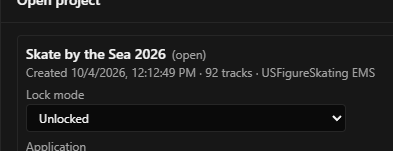
Once setup is done, turn on a lock so accidental edits are harder during the competition. In Project → Projects…, each project has a Lock mode setting:
- Lock all against changes — strongest protection against accidental changes to events, tracklists, and tags.
- Lock all except playlists against changes — same protection, but you can still build championship or custom playlists during the competition.
The window title shows (locked) or (playlists editable) when a lock is active.
Leave the project Unlocked while you are still importing EMS data, reordering, or fixing tags. Switch to a lock mode when you are ready to run music.
If the app stops responding
In the unlikely event IceTrackVault becomes unresponsive, close it (Task Manager if needed), restart the application, and reopen your project from Project → Projects…. That usually restores normal operation.
Regular Export Project… backups remain your best protection if you ever need to recover from a bad state.
Phone upload: set up early
If you plan to use phone upload for late files, follow Phone upload setup and test end-to-end well before the competition. Use View → Phone upload setup… and run Test tunnel path on a quiet day, then prove Project → Upload track to project… → Upload from phone once before you rely on it at the competition.
What to read next
- Contact us — report bugs or ask questions via GitHub or the contact form.
- User manual introduction — full table of contents.