Getting started
IceTrackVault is available on Windows and Linux (installers on GitHub Releases). macOS is not offered as a supported platform today; see Build from source if you are a contributor exploring a local macOS build.
Install
Windows
- Open Releases and download the latest installer (
.msiand/or.exe). - Run the installer. Because the installer is "not downloaded frequently", Windows SmartScreen will probably display a security warning asking whether you want to keep or discard the file; select keep to proceed with the installation.
Linux
Open Releases and download the latest
.debor.AppImage.On Debian or Ubuntu, install the package (this also installs WebKitGTK):
bashsudo apt install ./IceTrackVault_*_amd64.debOr run the AppImage after marking it executable:
bashchmod +x IceTrackVault_*_amd64.AppImage ./IceTrackVault_*_amd64.AppImageIf the AppImage will not start, install
libfuse2.For file and folder pickers (import, open archive, etc.), install portal support if dialogs do not appear:
bashsudo apt install xdg-desktop-portal xdg-desktop-portal-gtkWhen installing a
.debfrom yourDownloadsfolder, apt may warn that_aptcannot read the file; copy the package to/tmpfirst or usesudo dpkg -i ~/Downloads/IceTrackVault_*_amd64.deb.
First steps in the app
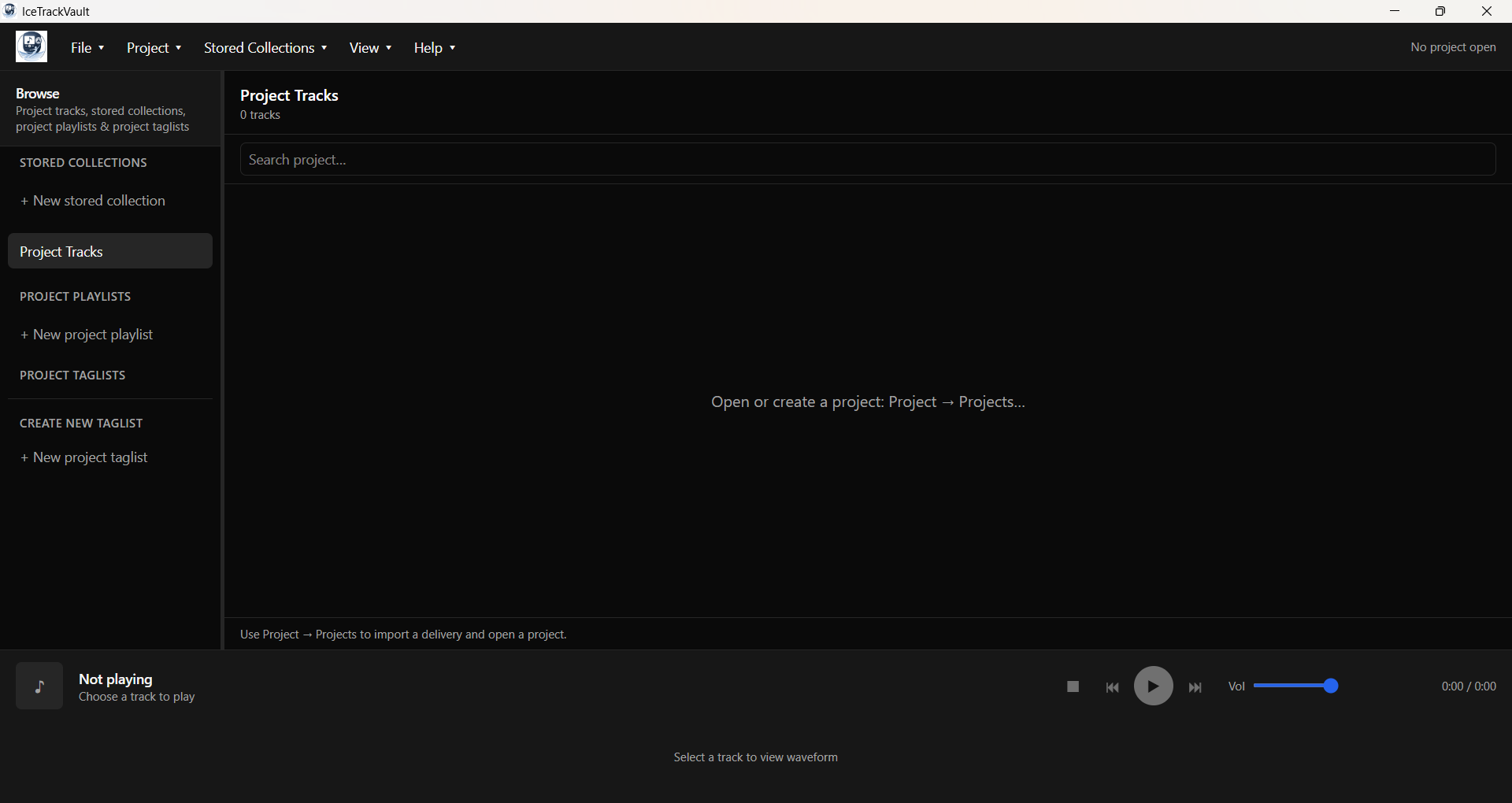
A new competition project is created using one or more ZIP archives of tracks - tagged and packaged by EMS - along with an EMS-generated schedule report. The schedule report provides the names for each event.
To start, collect the schedule report and all the music ZIPs in one directory. Then, in the steps below, you will select the directory where these files are located.
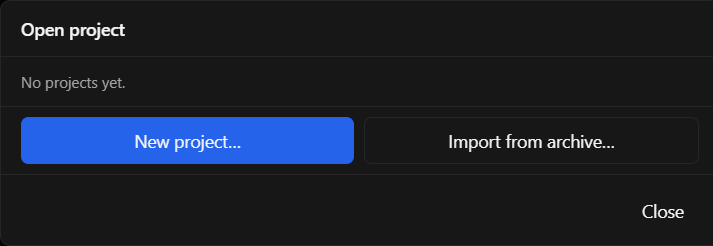
- Open Project → Projects… and select "New Project"
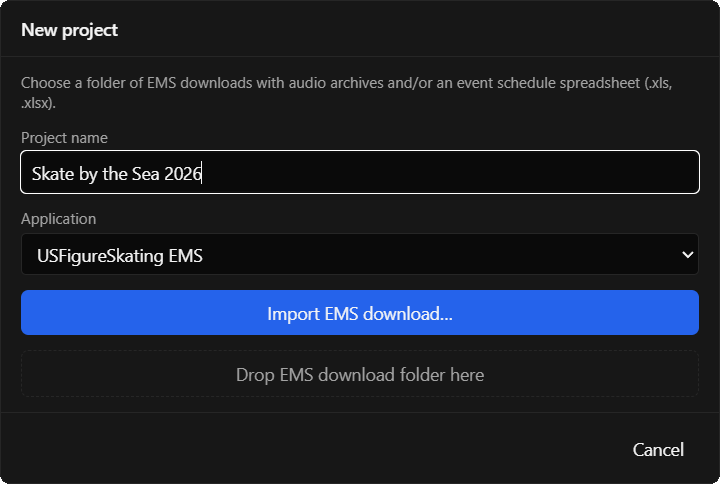
- In the New Project dialog, type in a project name and choose the USFigureSkating EMS application.
- Either click Import EMS Download... or drag and drop an EMS download folder from Windows Explorer. For this example, we clicked the import button. From there, navigate to the folder containing your tagged music ZIP archive(s) and EMS schedule report.
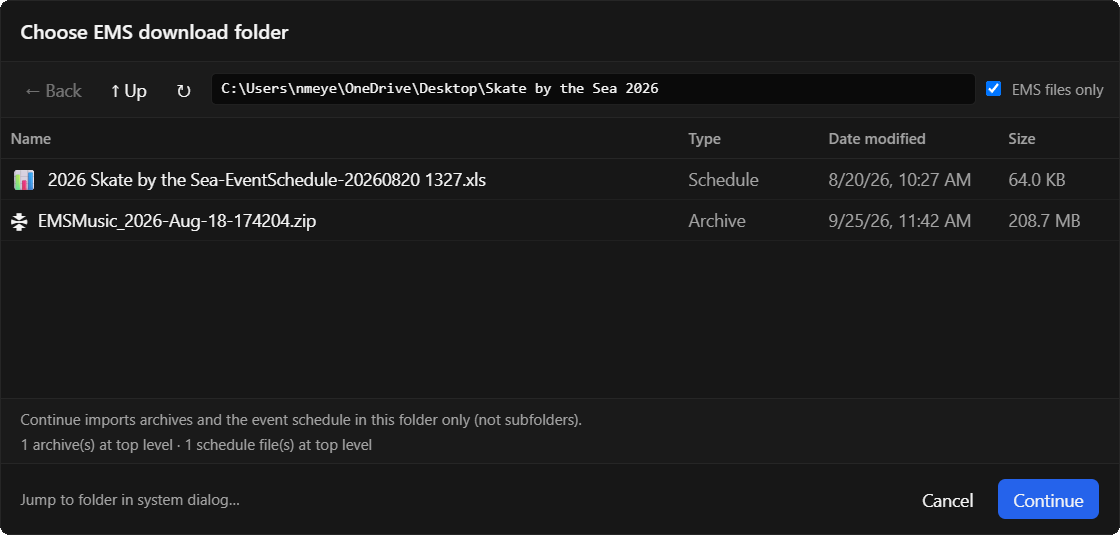
- Click Continue. IceTrackVault will take a few moments to examine the content, then show you a summary of what it read.
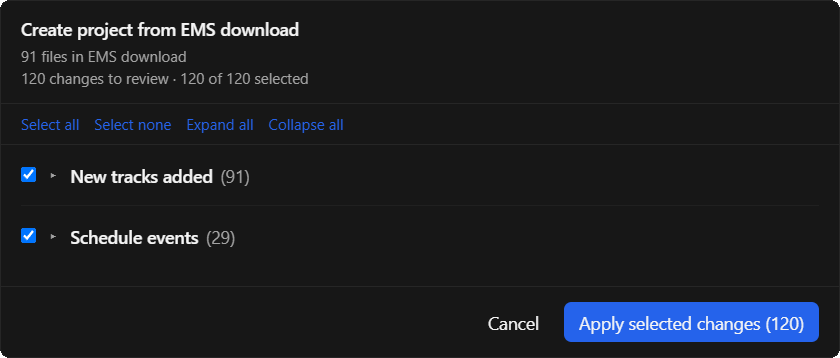
- Click Apply Selected Changes. IceTrackVault will take a few moments to process the files, and then you'll see the loaded project.
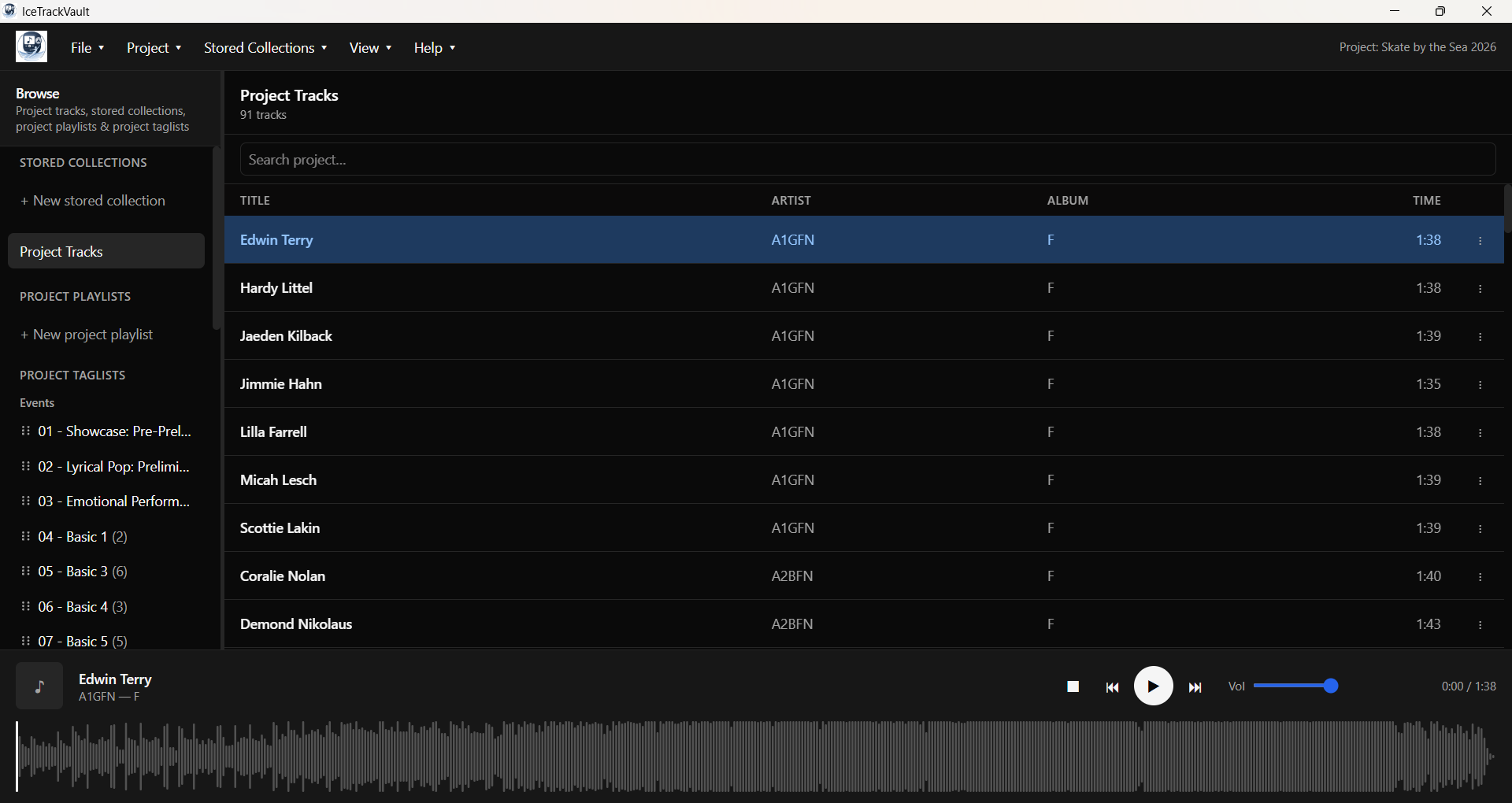
What to read next
- Managing projects — multiple competitions on one PC, the Projects hub, and lock modes.
- Using the music player — events, playback, and keyboard shortcuts during the competition.