Phone upload setup
Phone upload lets someone send audio from a phone or tablet (cellular or rink Wi‑Fi) into IceTrackVault on the competition PC. Traffic reaches your computer through a Cloudflare named tunnel and a dedicated HTTPS hostname you control.
Configure this once per music PC, then use Upload from phone whenever you upload tracks to a project or stored collection. See Best practices for timing: set up and test well before the event.
What you need
- A Cloudflare account with a domain (or subdomain) you can route through a tunnel.
- The
cloudflaredCLI installed on the same Windows or Linux computer that runs IceTrackVault, on your PATH. - A public HTTPS origin (hostname only) that points at your tunnel—for example
https://upload.yourclub.org(no path after the hostname).
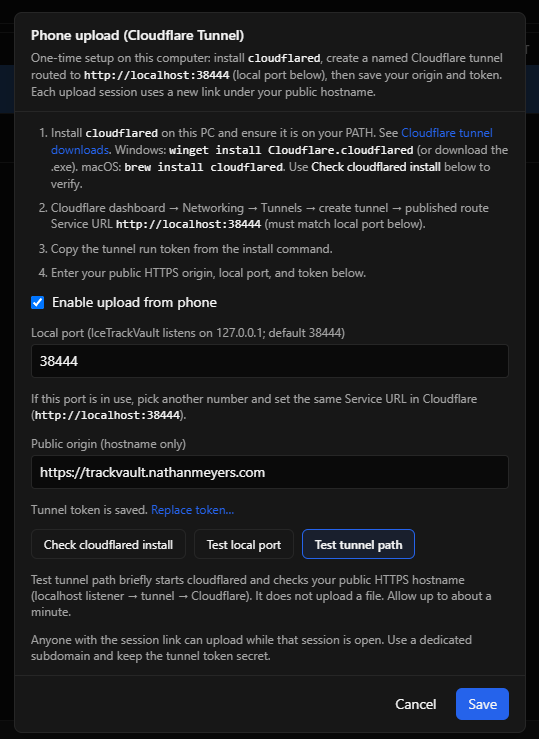
IceTrackVault listens on 127.0.0.1 on a local port (default 38444). Your Cloudflare tunnel must forward that hostname to http://localhost:38444 unless you change the port in both places.
Install cloudflared
On the music computer:
- Install from Cloudflare tunnel downloads. On Windows you can also run:powershellOn Linux, install the
winget install Cloudflare.cloudflaredcloudflaredpackage from that page and ensure it is on your PATH. - Open a new terminal so PATH updates, then confirm
cloudflaredruns.
In IceTrackVault, open View → Phone upload setup… and click Check cloudflared install to verify the app can find it.
Create the Cloudflare tunnel
These steps happen in the Cloudflare dashboard (Zero Trust / Networking → Tunnels). Exact labels may change; the goal is a named tunnel with a published route to your PC.
- Create a new tunnel (Cloudflare One connector).
- Add a public hostname (your upload subdomain) and set the Service URL to:
http://localhost:38444(orhttp://localhost:PORTif you will use a different local port in IceTrackVault). - Copy the tunnel run token from Cloudflare’s install command (the long token passed to
cloudflared tunnel run --token …).
Use a dedicated subdomain for uploads—not your main website. Keep the tunnel token secret; IceTrackVault stores it locally on this PC.
Configure IceTrackVault
Open View → Phone upload setup…
- Local port — default
38444. If that port is already in use on the PC, pick another (1024–65535), click Test local port, and set the same Service URL in Cloudflare (http://localhost:NEWPORT). - Public origin — your HTTPS hostname only, e.g.
https://upload.yourclub.org. Must usehttps://and must not include a path. - Tunnel run token — paste the token from Cloudflare (or Replace token… if one is already saved).
- Turn on Enable upload from phone.
- Run the checks:
- Check cloudflared install
- Test local port
- Test tunnel path — briefly starts
cloudflaredand verifies the public URL end-to-end (can take up to about a minute; no file is uploaded).
- Click Save.
Upload from phone is ready when enable is on, the origin is valid, and a tunnel token is saved. If Upload from phone does not appear in upload dialogs, reopen Phone upload setup… and confirm all three.
Using phone upload at the rink
When setup is ready:
- Project → Upload track to project… — choose Upload from phone. IceTrackVault starts a short-lived session and shows a QR code and session link (
https://your-host/s/…). - The same option appears when replacing a track file and when uploading to a stored collection.
On the phone, scan the QR code or open the link, then select one or more audio files. Files are added to the project or collection when the upload completes.
Session links are temporary. Each upload flow gets a new link. Anyone with the link can upload while that session is open—do not post session URLs publicly.
Troubleshooting
| Symptom | Things to check |
|---|---|
| cloudflared not found | Install cloudflared, restart IceTrackVault, use Check cloudflared install. |
| Port not available | Another app is using the port; change local port and update Cloudflare Service URL to match. |
| Tunnel path test fails | Token correct, Service URL matches local port, hostname DNS routed through the tunnel. Read error text from Test tunnel path. |
| No “Upload from phone” in dialog | Enable upload from phone off, missing token, or invalid origin—check Phone upload setup… and save again. |
For late-upload workflow after files arrive, see Solutions for common situations.
What to read next
- Best practices — backups, lock modes, and testing phone upload before competition day.
- User manual introduction — full table of contents.