Stored collections
Stored collections are permanent libraries that live outside competition projects. They hold audio that is not tied to a single competition and can be reused across many projects on the same music PC. IceTrackVault keeps the files in app data on that computer—not in the EMS project folder—so they stay available when you close or switch projects.
Typical uses include:
- National anthems
- Fanfares for awards ceremonies
- Background music to play during breaks in the competition
For playing music during events and using keyboard shortcuts, see Using the music player.
Browse stored collections
In the left sidebar, Stored Collections appears at the top of the Browse panel. Each collection shows its name and track count. Click a collection to open it in the center panel; the menu bar status line shows Stored collection: … for the active collection.
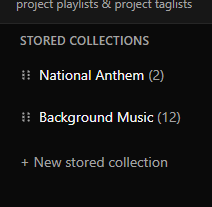
Create, rename, and delete
- Click + New stored collection at the bottom of the list.
- Type a name (for example
National anthems) and click Create. - To rename, hover a collection and click ✎, edit the name, then press Enter or click away.
- To delete, hover and click ×. Confirm when prompted. Deleting a collection removes all tracks copied into app storage for that collection. This cannot be undone.
Reorder collections
Use the grip on the left of a collection row and drag up or down, the same pattern as reordering events in the sidebar.
Import and upload audio
Use the menu bar Stored Collections menu for archives and uploads.
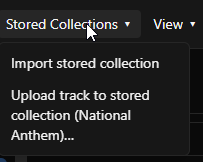
Import a saved collection
- Choose Stored Collections → Import stored collection.
- Select a
.icecollection.zipfile from disk. - IceTrackVault adds the collection and opens it. Track order, playback mode, and background volume settings from the archive are restored.
Share or back up libraries by exporting (below) and moving the zip to another PC or drive.
Upload tracks into a collection
Uploading copies audio into the active stored collection.
- Open the collection in the sidebar (required).
- Choose Stored Collections → Upload track to stored collection (…).
- Add files from disk, drag and drop, or use Upload from phone if you configured Phone upload setup.
If a filename already exists in that collection, IceTrackVault asks whether to overwrite or keep both copies.
The collection track list
With a collection open, the center panel lists its tracks. Playback works like event tracklists: single-click or use ↑ / ↓ to highlight a row; double-click or Enter to play. Transport controls and shortcuts are described in Using the music player.
- Reorder tracks — drag the row grip.
- ⋮ menu on a row — Edit tags… or Delete (removes the file from app storage).
Project-only row actions (swap event, replace file, add to playlist, and similar) do not appear here.
If the collection is empty, use Stored Collections → Upload track to stored collection… to add audio.
Playback modes
In the collection header, set Playback to match how you run that library.
Discrete
Discrete is the default. Each track plays on its own: use play, pause, stop, and seek like competition music. Choose this for anthems, fanfares, and other one-off cues.
Continuous background
Continuous background is for break music and other loops. When one track ends, IceTrackVault advances to the next track in list order and wraps from the last track back to the first.
- Background volume — percentage of the master volume slider in the player bar (shown while continuous mode is selected).
- Resume position — the app remembers the last track and position for that collection when you reopen it or return from elsewhere.
- Stop (■) — while continuous background is active, stop pauses and saves position instead of clearing playback like a typical stop on discrete tracks.
During a competition you might run break music in continuous mode, then switch the sidebar to Events to play a competitor’s program. Only one track plays at a time in the player. When something else is playing, use ↩ Playing track in the player bar to jump back to the collection view and the track that was playing from there.
Build the break playlist in list order before the competition; use Continuous background and set background volume once you are happy with the level.
Export a collection
- Open the collection.
- Click Export… in the header.
- Save a
.icecollection.zipfile (the default name comes from the collection name).
The archive includes audio files, track order, playback mode, and background volume. Use it to back up anthems or fanfares before hardware changes, or to copy a library to another music PC via Import stored collection.
Collections and competition projects
Stored collections belong to this IceTrackVault install, not to a single project folder.
- They are not included in Project → Export Project… (
.iceproject.zip). Export collections separately with Export… or import/export from the Stored Collections menu. - Closing or removing a project does not delete stored collections or their audio in app data.
What to read next
- Phone upload setup — send files from a phone into a project or stored collection.
- Using the music player — events, transport controls, and keyboard shortcuts.
- Best practices — export backups and lock modes during the competition.