Using the music player
This chapter covers running music during a skating competition. It explains how Events are organized in the sidebar, how each event’s tracklist (skating order) works, how to play and seek tracks, and how to reorder events and competitors to match starting and event orders.
If you have not loaded a project yet, start with Getting started. To switch competitions or set lock modes, see Managing projects.
Main window layout
After a project is loaded, the window has three areas of interest:
- Sidebar (left) — navigate through the project's events, playlists, and stored collections.
- Center — the music tracks (tracklist) in the current event.
- Player bar (bottom) — title, transport controls, volume, elapsed time, and a waveform for the highlighted or playing track.
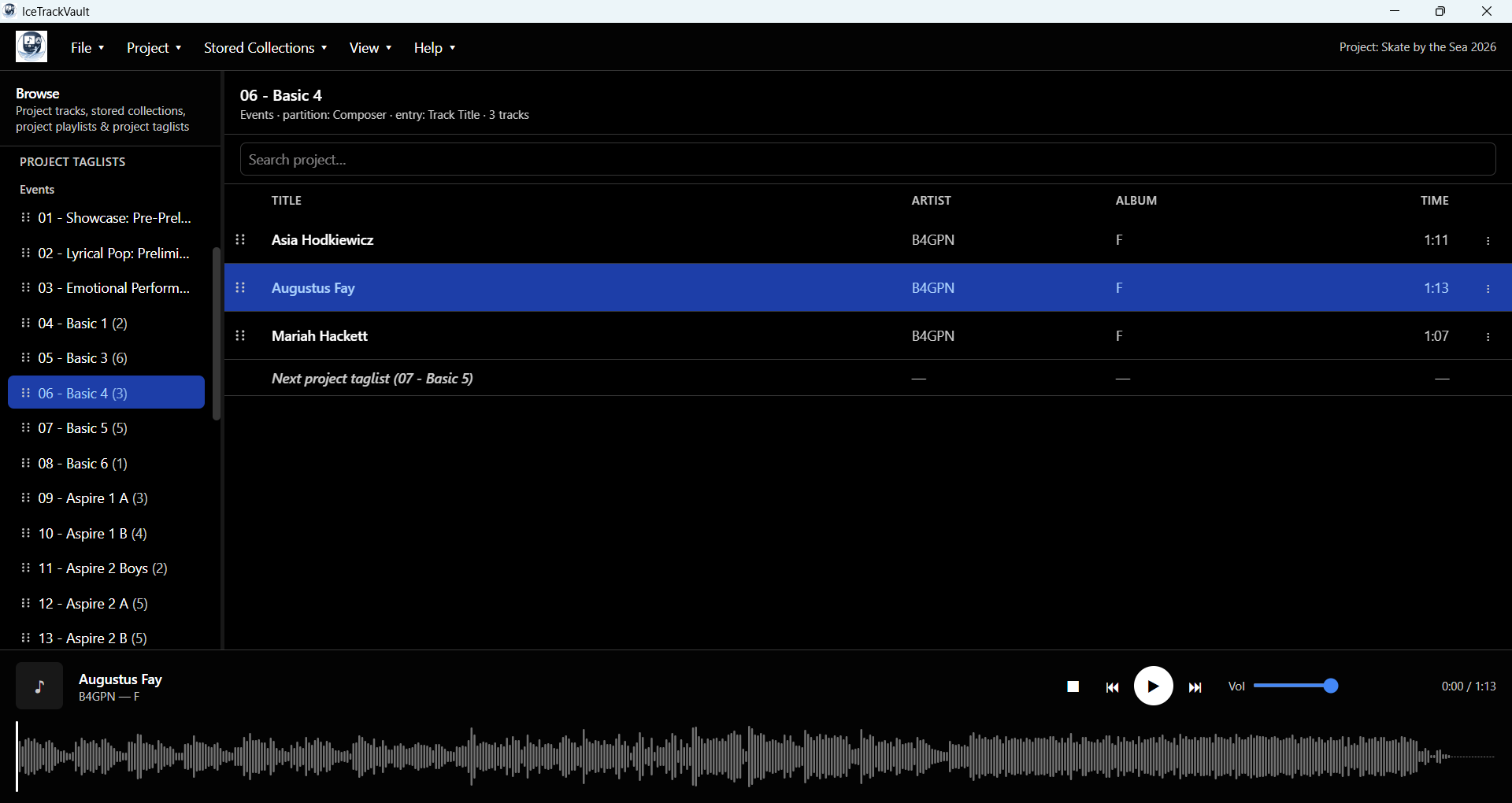
In the previous section, you saw all of the music tracks under Project Tracks. Below that, we see the tracks organized by Events. (The list of events is called a taglist because the events are organized by an MP3 tag applied by EMS.)
Events and the Events taglist
When loading EMS projects, IceTrackVault creates the Events list in the sidebar, showing the event number, the name (from the EMS schedule report), and the number of music tracks in that event.
Select an event
Click an event in the sidebar. The center panel switches to that event’s tracklist and shows the event name at the top, along with a track count.
You can also use Page Up and Page Down to move to the previous or next event while an event view is open (see Keyboard shortcuts).
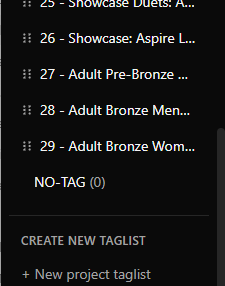
NO-TAG
At the bottom of the Events list, NO-TAG lists project tracks that do not have a tag placing them in any event. Those files will not appear under any numbered event until tags are set (we discuss later how to do that).
Per-event tracklist (competitors)
With an event selected, the center table shows the music tracks for that event. They can be reordered, to reflect start order, by grabbing and dragging the grab handle on the left side of the row. Here are the most important controls to use in the tracklist:
- Single-click or use the up- and down-arrow keys to position a track for playing next.
- Double-click on a row, or hit the Enter key on the highlighted row, to start the music.
The ⋮ menu on each row opens actions such as editing tags, moving a skater to another event, replacing a file, or deleting a track. These operations are described in Common situations.
Search within the project
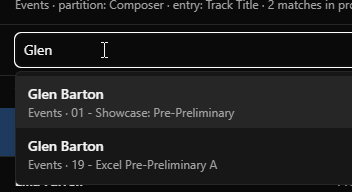
The Search project… field above the table finds tracks across the whole project. Start typing a name to search for a competitor's events. You can select one of the matches to move to that event and track in the project.
Jump to the next event
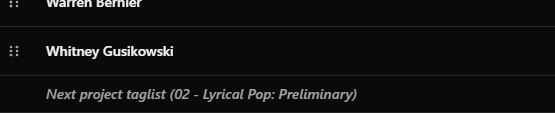
At the end of each event, you'll see a footer row labeled Next project taglist (…) with the next event name. This provides an easy way to navigate to the next event directly from the current event's tracklist - without having to mouse over to the Events list. You can move to the next event by double-clicking on that row, or hitting Enter when that row is selected.
Playing music
Transport controls
The player bar (bottom) provides:
| Control | Keyboard Shortcut | Action |
|---|---|---|
| Stop (■) | Stops playback and resets the current track to the beginning | |
| Jump to beginning (⏮) | Home | Seeks to the music start |
| Play / Pause | P | Starts or pauses the highlighted or loaded track |
| Jump to end (⏭) | End | Seeks near the music end |
| Volume | ← / → | Slider |
Using the Waveform
The waveform display in the player gives you a view into the track's volume, and also shows position and time while the track is playing. You can also click within the track to change playback position - even while the track is playing.

Rearranging skating order and event order
The order of events and competitors you see when the competition is first loaded might not match actual event or skating order. IceTrackVault lets you reorder competitors within an event and events within the competition. Order is stored in the project database and is kept when you reopen the project.
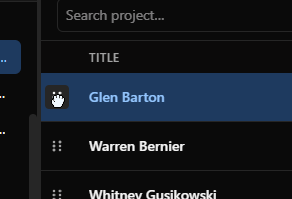
Reorder competitors (rows in the tracklist)
- Open the event in the sidebar.
- On the left side of each row, use the grip (six-dot handle).
- Press and drag the grip up or down. A line shows where the row will land.
- Release to save the new order.
Reorder events (rows in the Events taglist)
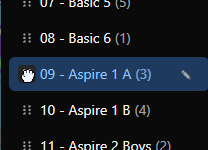
- In the sidebar, under Project Taglists → Events, each numbered event has a grip on the left (same pattern as the track table).
- Drag an event up or down to match the rink schedule.
- Release to save.
NO-TAG is not reorderable; it always stays at the bottom.
Keyboard shortcuts
Shortcuts work when focus is not in a text field. Open Help → Keyboard shortcuts… in the menu bar for the in-app list.
| Keys | Action |
|---|---|
| ↑ / ↓ | Previous / next track in the current event list (or move to/from the next-event footer) |
| Enter | Play or restart the highlighted track; or open the next event from the footer |
| P | Play / pause |
| ← / → | Volume down / up |
| Home / End | Jump to beginning / near end of track |
| Page Up / Page Down | Previous / next event in the sidebar (when viewing an event) |
Once events and competitors are in order, you can run the entire competition with keyboard shortcuts: selecting tracks, starting tracks, moving to the next event. This saves mouse fatigue and helps avoid mistakes.
What to read next
- Solutions for common situations — wrong file, missing music, moving skaters between events, EMS re-downloads.
- Stored collections — anthems and other libraries outside the competition project.