Solutions for common situations
IceTrackVault was written not just to play music, but to provide robust support for problems that music coordinators routinely deal with. This page walks through typical issues before and during the competition: missing music, incorrect files, swapped short and long programs, moving skaters between events, creating events on the schedule, and applying updated EMS downloads.
Before you edit
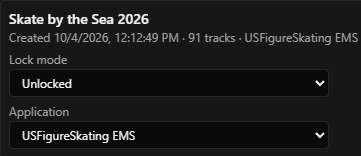
Most fixes on this page change tags and sometimes files on disk in your project folder. They are only available when the project is Unlocked:
- Open Project → Projects…
- Set Lock mode to Unlocked for that project
While a lock is active, track row menus and sidebar edits that would change events or tags are unavailable. See Best practices for when to lock again during the competition.
Missing track
A competitor's music may be missing: perhaps they never uploaded it, or uploaded it after you took the EMS downloads. Here's how you can load their music directly into the competition:
Add or assign music
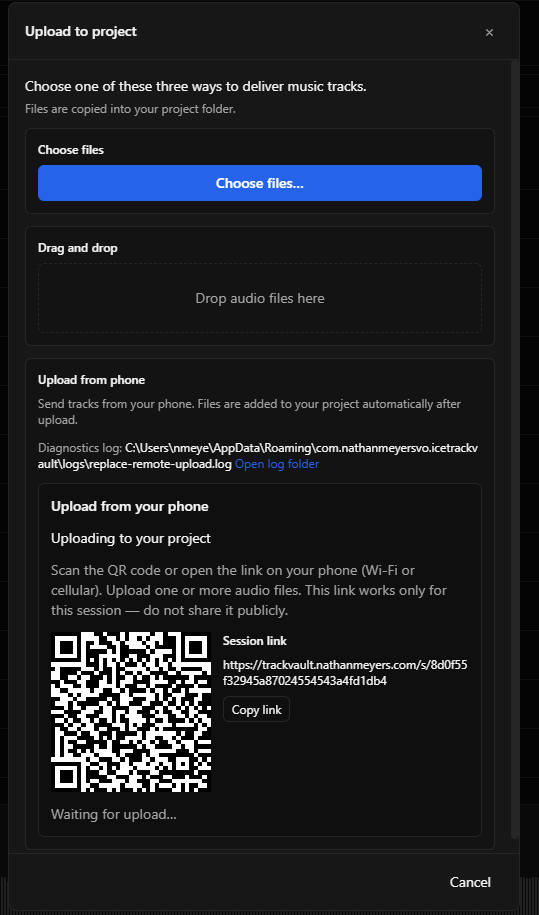
- Choose Project → Upload track to project… The Upload to project dialog opens. It explains that files are copied into your project folder, then offers one of three ways to deliver a music track (or two if Phone upload setup is not configured yet).
- Pick how to add the audio:
- Choose files — click Choose files… and select one or more audio files from disk.
- Drag and drop — drop files onto Drop audio files here (MP3, FLAC, WAV, and similar formats).
- Upload from phone — use the phone section to start a session with a QR code and link (requires phone upload setup).
- The uploaded track will probably show up in the NO-TAG event. (In the unlikely event the track had a
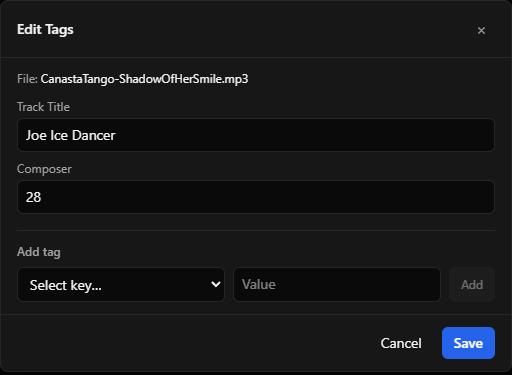
Composertag set, it will instead show up in an event matching that tag.) Go to that event and select the track’s ⋮ menu → Edit tags… - Add tags for
Composer(set to the event number) andTrack Title(set to the competitor name). Or edit those tags if they already exist. Then Save.
Swap tracks
Occasionally, a competitor (or coach or parent) will upload tracks to the wrong event: for example, uploading freeskate music to the short program and vice-versa.
You can quickly correct this with Use a swap operation:
- Select the event and open the track’s ⋮ menu → Swap Event…
- That brings up a dialog showing the competitor's tracks in other events. Select the event you want to swap. and press Swap….
- Review the preview, which shows you the details of the files and tags that will be swapped.
- Click OK.
Moving a competitor to a different event
Use a move when a competitor should be in a different event. There are a couple of ways to do this:
Drag to the Events list
- Pointer-drag a row in the event tracklist.
- Drop it on the destination Event in the sidebar.
- Confirm the Move.
Change Event…
- ⋮ → Change Event…
- Enter the new event number (the
Composertag value). - Click OK. The file’s metadata is updated on disk.
Creating a new event in the taglist
The schedule report defines most events at project creation. If an event is missing from Events (added late on the schedule, or not in the import), add it manually:
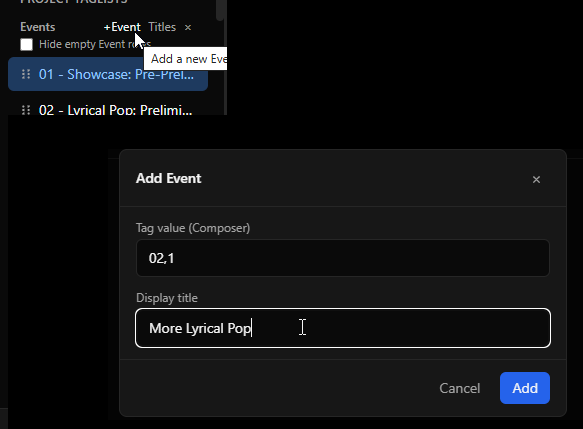
- In the sidebar, hover the Events header.
- Click +Event.
- If +Event is grayed out, turn off Hide empty Event rows for that taglist, or unlock the project.
- Enter Tag value — the
Composernumber EMS uses (for example14). - Enter Display title — the name shown in the sidebar (for example
14 - Juvenile Girls FS). - Click Add.
IceTrackVault opens the new empty event. Assign tracks by uploading and tagging, dragging from NO-TAG, or moving from another event.
Another way: IceTrackVault also adds an event row when any track’s Composer tag is set to a number that is not already an event—for example with ⋮ → Edit tags… or Change Event…. The new row appears in Events with only the event number in the sidebar (no display title). Click the row and use Edit title to add the name shown in the sidebar, the same as for events you create with +Event.
Replace track
Use Replace file when tags, event, and skater identity are correct but the audio is wrong—corrupt file, wrong mix, or a corrected upload from the skater. The track stays the same row in the project; only the project copy of the audio changes.
- Select the track and open ⋮ → Replace file…
- Provide the new audio through one of the three upload options:
- Choose file…
- Drag and drop onto the dialog
- Upload from phone (see Phone upload setup)
- Review What will happen:
- IceTrackVault copies the new file into the project folder that holds this track.
- IceTrackVault copies tags from the old file into the new one.
- Confirm when the preview matches what you want.
Applying an updated EMS download
You might want to download updated tracks and event names from EMS after your original setup.
Understand the risk
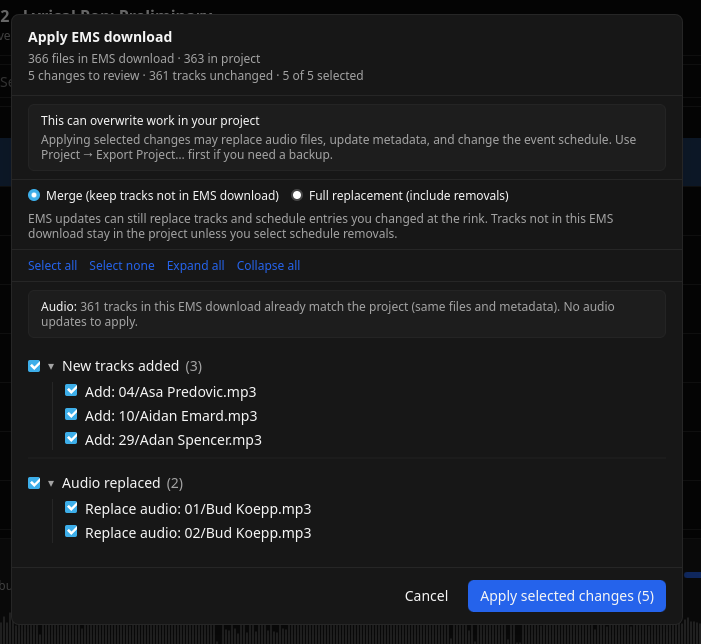
Apply EMS Download… is not a read-only preview. Even in Merge mode, the changes you select can overwrite music files and metadata and change the event schedule—undoing fixes such as swapped files, tag edits, or phone uploads when EMS applies an update to the same track or event.
Full replacement (include removals) goes further: IceTrackVault treats the EMS download as the complete source for competition music and schedule. Tracks in your project that are not in the download are proposed for removal, along with anything you added manually that EMS does not include.
Always Export Project… before applying (Best practices).
- Export Project… first to create a safety backup.
- Ensure the project is Unlocked.
- Project → Apply EMS Download… and select the new download folder (same idea as creating a project).
- Read the in-app warning, review the change list, and choose how to apply:
- Merge — add and update tracks and schedule entries; keeps project tracks that are not in the EMS download, but still overwrites selected matches.
- Full replacement (include removals) — authoritative EMS snapshot: removes project tracks not in the download (when you apply those removals) and applies all merge-style overwrites.
- Click Apply Selected Changes (or the equivalent confirm control in the preview).
After apply, spot-check Events and a few competitors. Use the sections above for any track still missing, in the wrong event, or needing a file replacement.
What to read next
- Best practices — backups, lock modes, and recovery if something goes wrong.
- Phone upload setup — late files from a phone at the rink.
- Using the music player — playback, search, and event navigation during the competition.